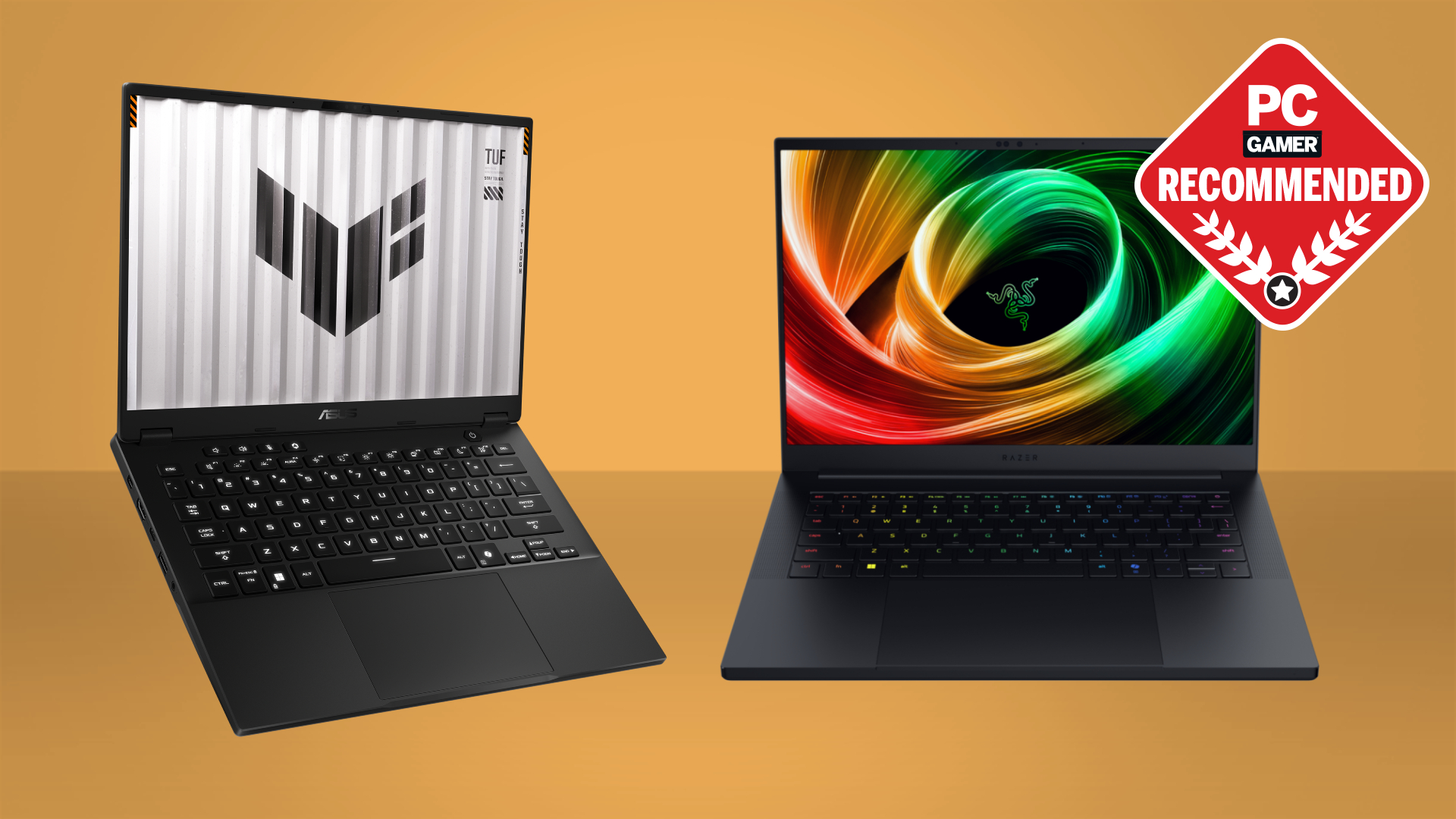
ASUS
ASUS
How to Optimize Your Gaming Laptop for Maximum FPS: The Complete 2026 Guide
Verified Hardware Analysis · Published July 12, 2026

Introduction
In 2026, the gap between 'out-of-the-box' performance and a fully tuned machine is wider than ever. While top-tier hardware like the Razer Blade 16 (RTX 4090) offers immense raw power, even high-end units require careful optimization to bypass thermal throttling and power limitations. Maximizing your Frames Per Second (FPS) isn't just about hardware specifications; it is about harmonizing your OS, cooling solution, and firmware to ensure your components are operating at their peak efficiency. Whether you are gaming on the entry-level MSI Katana 15 (RTX 4050) or the enthusiast-grade Lenovo Legion Pro 7i (RTX 4080), this guide provides the technical roadmap to achieving a smoother, more responsive gameplay experience.
Understanding the Hardware Ceiling: TDP and Thermal Throttling
The most common bottleneck in any gaming laptop is thermal throttling. When your CPU or GPU reaches its thermal limit—usually around 85-95°C—the system automatically drops clock speeds to prevent physical damage. This manifests as 'stuttering' in games.
Performance is heavily dictated by TDP (Thermal Design Power). For example, the ASUS ROG Strix G16 features a high-wattage implementation of the i9-14900HX, allowing it to sustain boost clocks significantly longer than ultra-thin models. To optimize your machine, you must ensure your cooling solution is clear of debris and that you are using a cooling pad to improve intake airflow. If you are using a portable device like the ASUS ROG Zephyrus G14 (Ryzen 9 8945HS), maximizing FPS often requires undervolting the GPU to keep thermals under the throttling threshold, allowing the card to maintain its 'boost' clock for longer durations.
Top Recommended Picks
Top Picks Based on Real Benchmarks

Software Optimization and System Tuning
Before diving into hardware modifications, you must clear the software path for your GPU.
- Drivers and Firmware: Always maintain the latest NVIDIA Game Ready drivers. Ensure your BIOS is updated, as manufacturers frequently release microcode updates that improve power delivery to the CPU.
- MUX Switches: If your laptop supports a MUX switch (found in the Lenovo Legion Pro 7i and ASUS ROG Strix G16), set it to 'Discrete GPU Only' mode. This bypasses the integrated graphics, sending video signals directly from the dedicated GPU to the display, which can result in a 5-15% FPS increase in CPU-bound titles.
- Power Plans: Always operate in 'Performance' or 'Turbo' modes via your manufacturer’s control software (e.g., Armoury Crate or Lenovo Vantage). These profiles adjust the power limits (PL1/PL2) for your processor, giving it the headroom needed for high-refresh gaming.
Memory: RAM Timings and Dual-Channel Impact
Gamers often overlook RAM, but memory bandwidth is critical for 1% low FPS stability. If you are running a budget build like the Acer Predator Helios 16 (RTX 4060), ensure you are utilizing dual-channel memory configurations. Two sticks of RAM provide wider bandwidth than a single stick, allowing the i7-13700HX to feed data to the GPU without bottlenecking. If you are an advanced user, checking your RAM timings in the BIOS—or via tools like CPU-Z—can reveal if you are leaving performance on the table. Lower latency (CL) RAM kits often prevent micro-stutters during intense, high-action sequences in modern competitive shooters.
More Great Options
Top Picks Based on Real Benchmarks
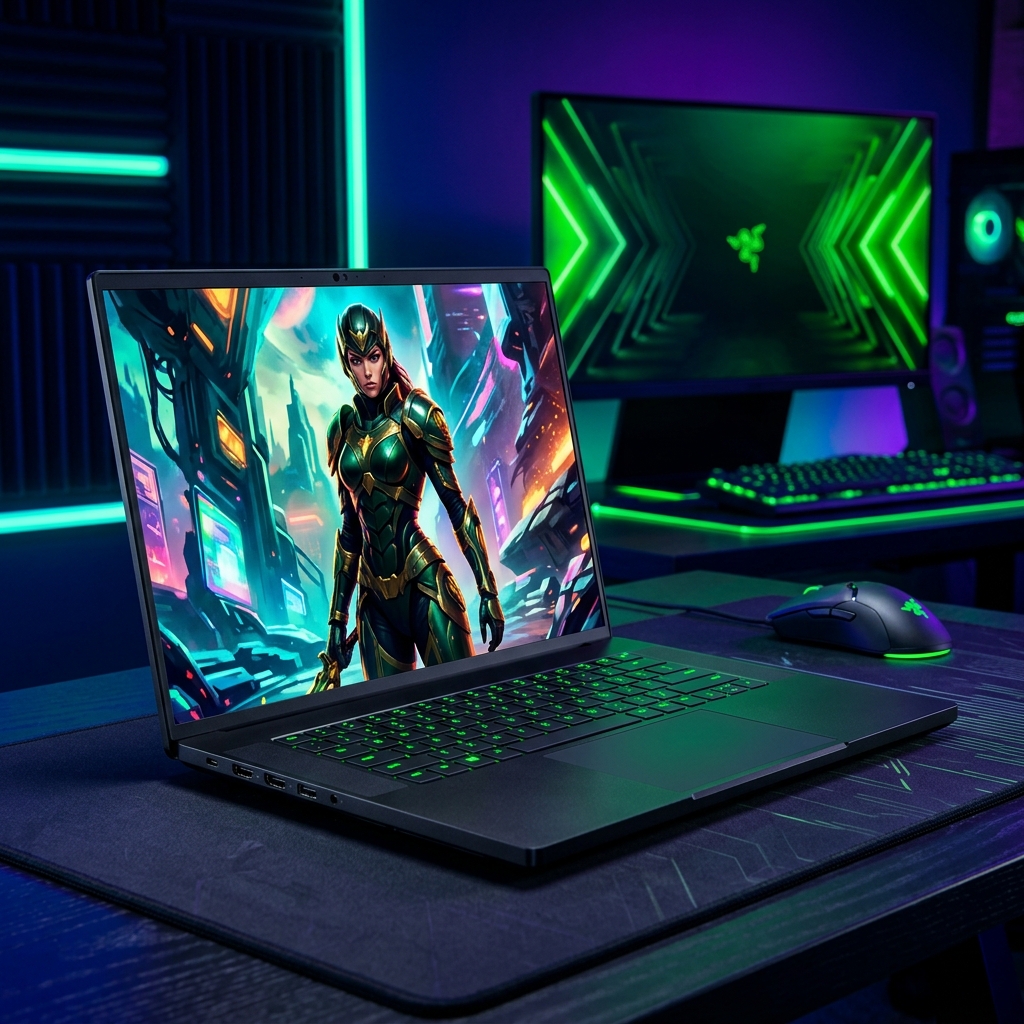 Razer
★ Featured
Razer
★ Featured
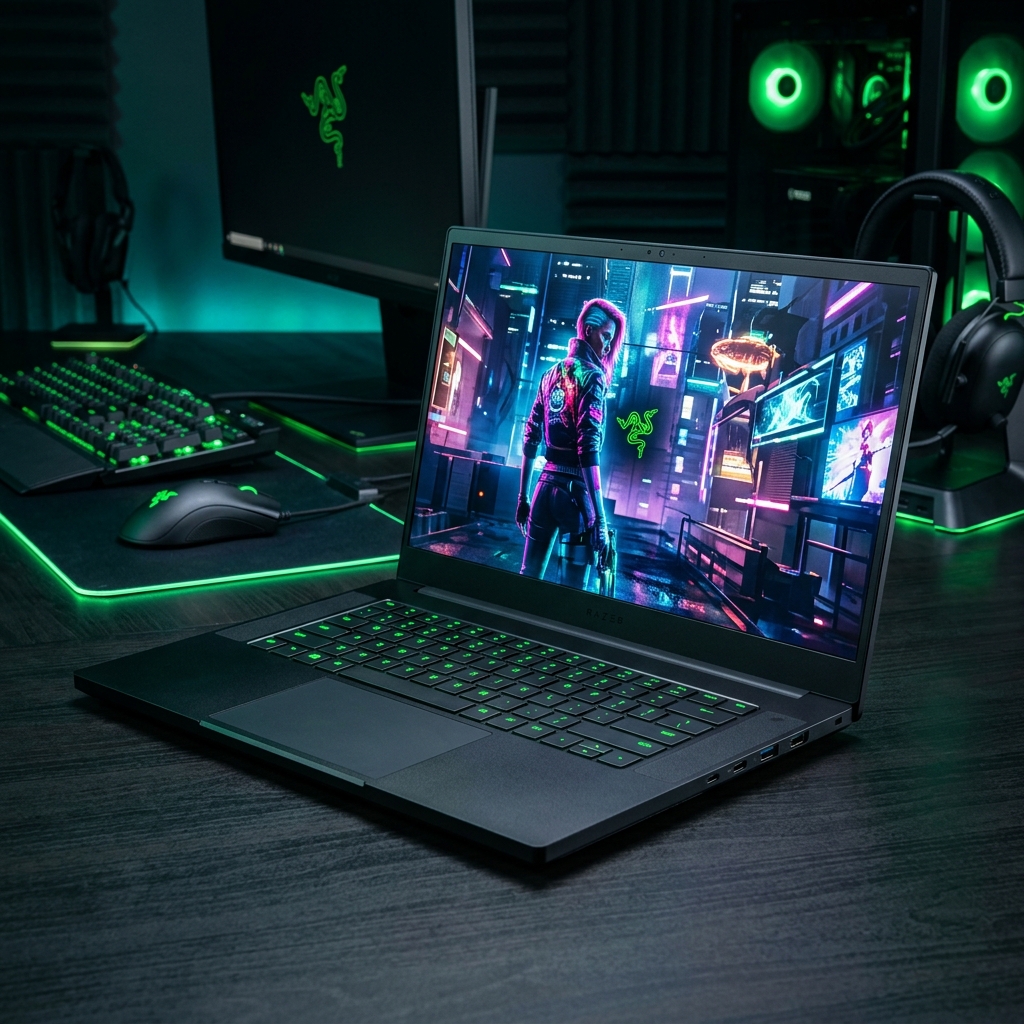 Razer
★ Featured
Razer
★ Featured
 Acer
Acer
Verdict: Balancing Cost vs. Optimization
Ultimately, hardware is the foundation, and tuning is the architecture. While the Razer Blade 16 offers the highest ceiling for performance due to its premium thermal design and RTX 4090, a budget machine like the MSI Katana 15 can see a massive relative performance gain through aggressive software optimization, undervolting, and proper thermal maintenance. In 2026, the best strategy is to identify your laptop's specific power limit, unlock the maximum TGP (Total Graphics Power) through official software, and ensure your system is running in a MUX-enabled discrete graphics mode. By mastering these variables, you can extract every possible frame from your investment.
Frequently Asked Questions
Does undervolting my CPU or GPU actually increase FPS?
Yes. By lowering the voltage, you reduce the heat generated by the chip. Because gaming laptops are almost always thermally constrained, less heat allows the GPU to sustain higher clock frequencies (boost clocks) for a longer time, resulting in a more stable and higher average FPS.
What is the difference between a MUX switch and Optimus?
Optimus is a power-saving technology that routes GPU output through the integrated CPU graphics. A MUX switch allows you to physically disconnect the integrated graphics and connect the display directly to the discrete GPU (e.g., your RTX 4070/4080). This eliminates the latency and performance tax of Optimus, which is essential for competitive gaming.
How often should I clean my laptop fans to maintain FPS?
Depending on your environment, you should clean your laptop's intake vents and fans with compressed air every 3 to 6 months. Dust buildup acts as an insulator, trapping heat and forcing your fans to work harder while the system throttles your CPU/GPU to prevent overheating.
Compare Gaming Laptops Instantly
Select any two laptops to compare real game frame rates side-by-side.